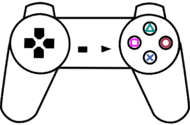
PS1 games were designed for a gamepad, and ePSXe’s controller support is one of its strengths — including analog sticks, rumble on supported setups, and (as the official feature list notes) gamepads in digital mode can use the left stick as the D-pad since v2.0.5. Here is the setup that works on both platforms.
Windows: Config > Gamepad
- Connect the controller before launching ePSXe — pads plugged in mid-session are the top cause of the controller not working problem.
- Open Config > Gamepad > Port 1 > Pad 1 and choose the pad type: DualShock for analog games, Digital for early titles.
- Click each input box and press the physical control. Map the d-pad as well as the left stick — many PS1 games ignore the stick entirely.
- For XInput pads, v2.0.5 swapped the vibration actuators to match the real PSX left/right — if rumble feels mirrored on an old config, re-save the profile.
Android: Preferences > Gamepad
Pair the controller in Android’s Bluetooth settings first, then map it inside the app. The official listing confirms support for Bluetooth and USB gamepads (WiiMote, Sixaxis, Xbox 360-era pads, Moga, Ipega class devices) plus analog sticks. For two-player games, ePSXe for Android supports up to 4 players and a two-player split-screen mode — see netplay and multiplayer.
Choosing a pad for PS1 games
A d-pad-centric layout matters more than extra buttons: PS1 games live on the d-pad and four face buttons. Our best controller for ePSXe guide compares the usual suspects — 8BitDo’s SN30 Pro style pads, GameSir’s mobile controllers, PowerA and the budget Logitech F310 — with the trade-offs stated plainly.
Quick checks when inputs misbehave
- Wrong port mapped (the game reads Port 1 only in most menus).
- Pad type set to DualShock for a digital-only game, or the reverse.
- Another app (Steam, a mapper tool) intercepting the controller on Windows.
- On Android, the pad paired to a different profile or connected after launch.